> For the complete documentation index, see [llms.txt](https://docs.world3.ai/world3/llms.txt). Markdown versions of documentation pages are available by appending `.md` to page URLs; this page is available as [Markdown](https://docs.world3.ai/world3/how-to-guides/routerlink/tutorials/how-to-integrate-routerlink-in-typingmind.md).
# How to integrate RouterLink in TypingMind
{% hint style="info" %}
This documentation is provided for informational purposes only and demonstrates how to configure and use our API with third-party AI chat interfaces. Any third-party software, websites, or services mentioned are not operated, controlled, or endorsed by us.
{% endhint %}
***
## Overview
This tutorial guides you through integrating **RouterLink**—WORLD3's decentralized AI model routing infrastructure—with **TypingMind**, a professional AI chat interface platform.
### Purpose
RouterLink provides a unified API endpoint that routes requests to multiple AI model providers through a decentralized network. By integrating RouterLink with TypingMind, you gain access to a diverse range of large language models (LLMs) without managing multiple API keys or provider-specific configurations.
### What You Will Learn
By completing this tutorial, you will:
* **Configure TypingMind** to connect with RouterLink's API endpoint
* **Authenticate** using your RouterLink API credentials with custom headers
* **Add and manage AI models** available through the RouterLink network
* **Execute inference requests** through TypingMind's conversational interface
### Prerequisites
Before proceeding, ensure you have:
* A RouterLink API key (obtain one from the [Quick Start Guide](https://docs.world3.ai/world3/how-to-guides/routerlink/quick-start-guide))
* A web browser with internet access
* Basic familiarity with API configuration concepts
***
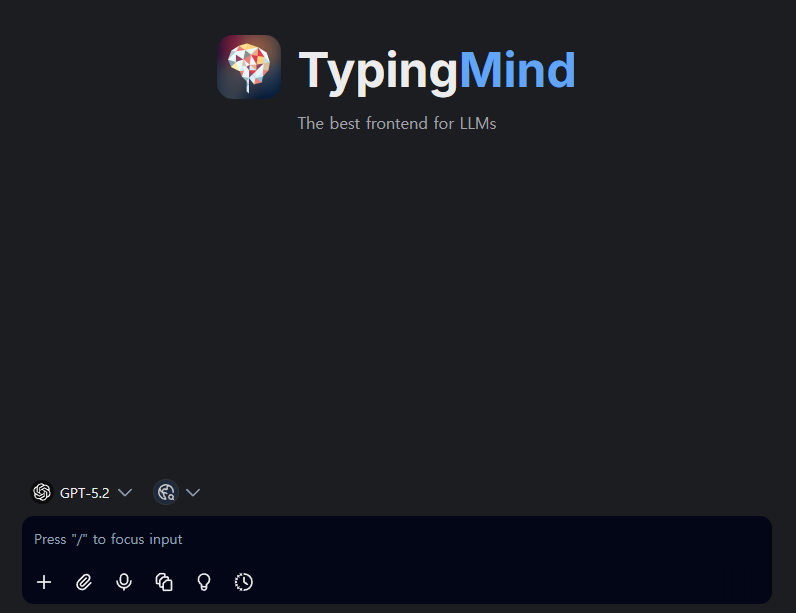
## Introduction to TypingMind
**TypingMind** is a professional, customizable chat interface (UI) that enables users to interact with multiple large language models (LLMs) such as GPT, Claude, and Gemini from a single platform. It offers enhanced features for organizing conversations, managing prompts, uploading documents for context (RAG), and building custom AI agents.
Key features include:
* Multi-provider model support with custom API configurations
* Advanced prompt library and conversation management
* Document upload capabilities for Retrieval-Augmented Generation (RAG)
* Options for personal use, team collaboration, and self-hosting for privacy
***
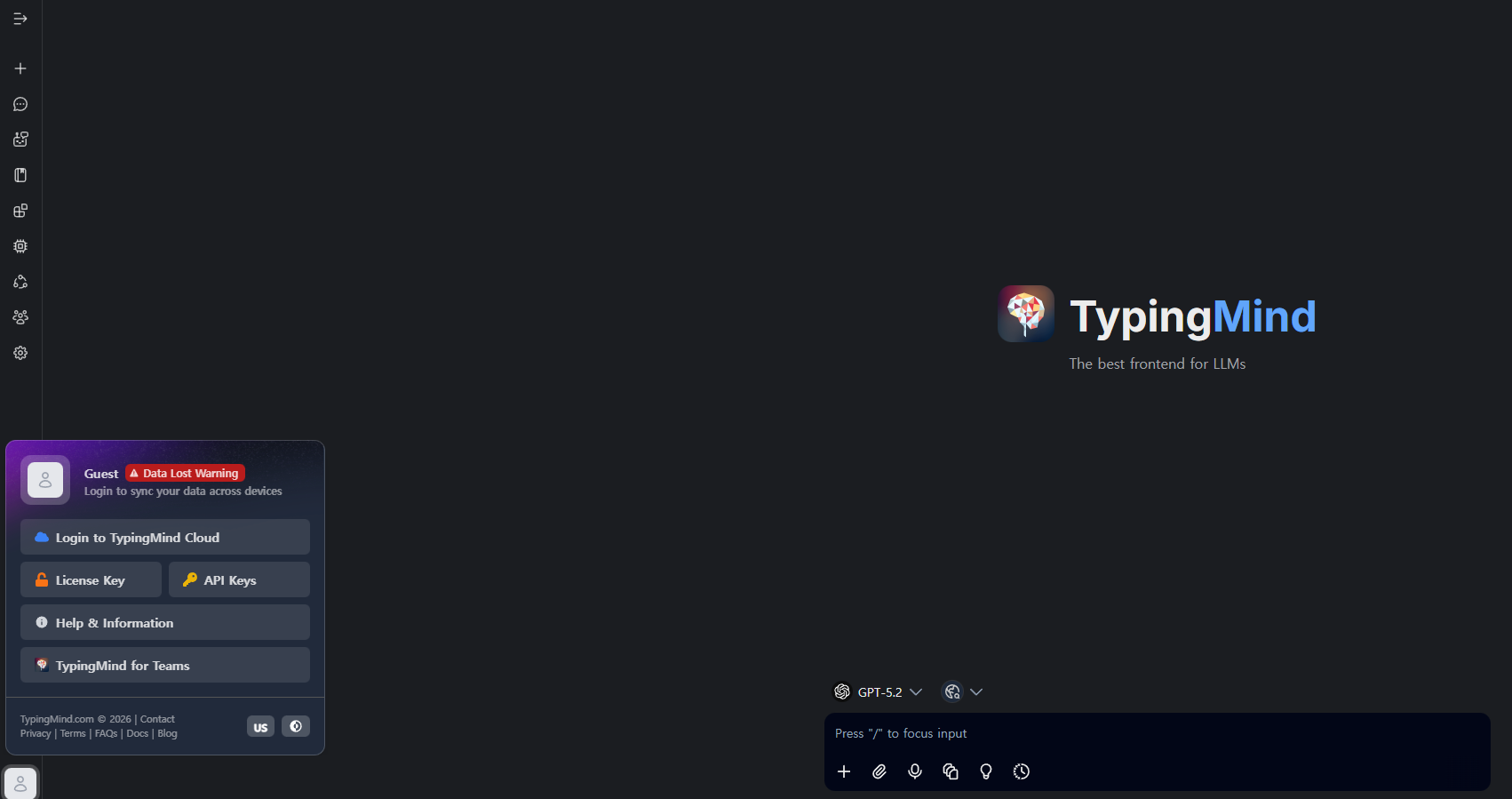
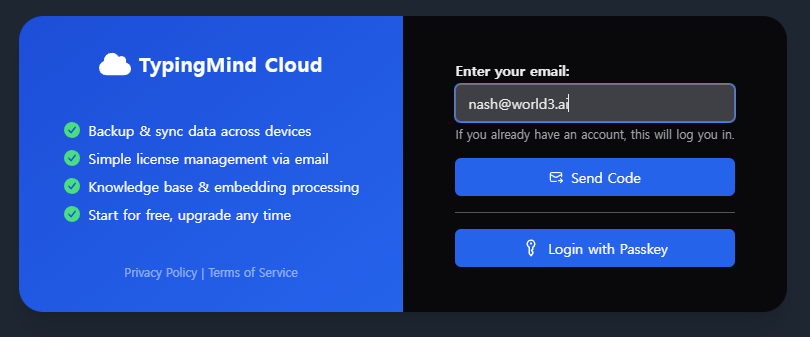
### Step 1: Access TypingMind
Navigate to and authenticate using your email address.
***
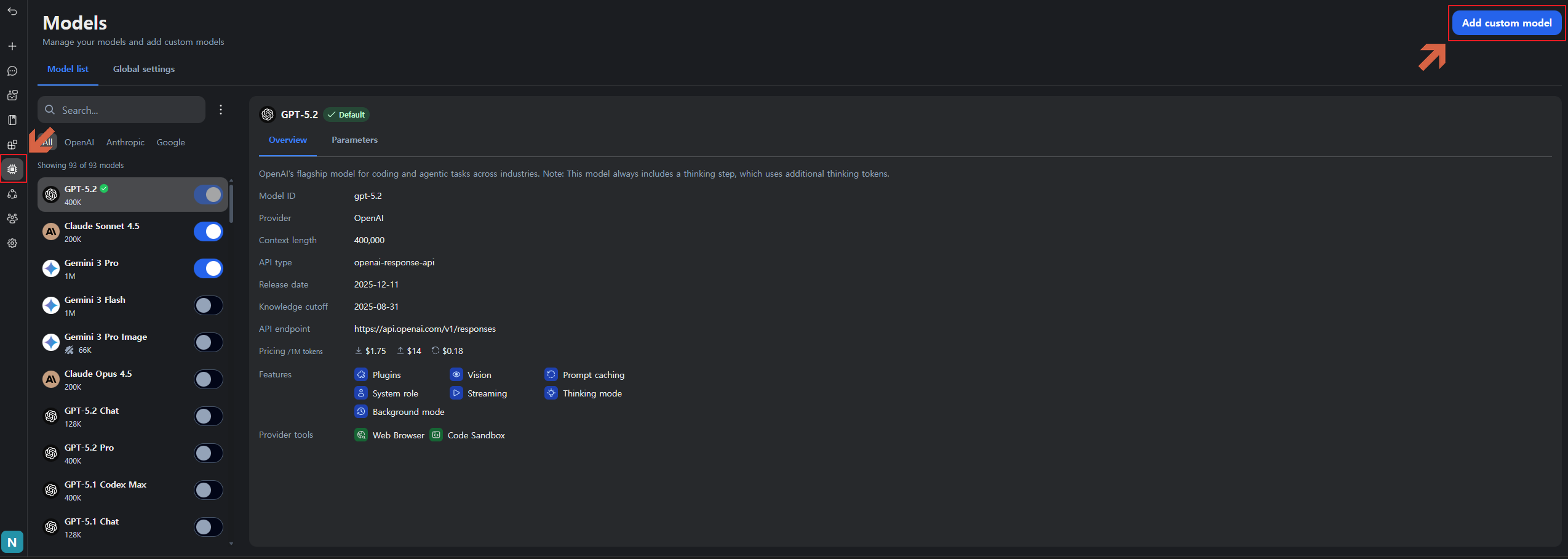
### Step 2: Add a Custom Model
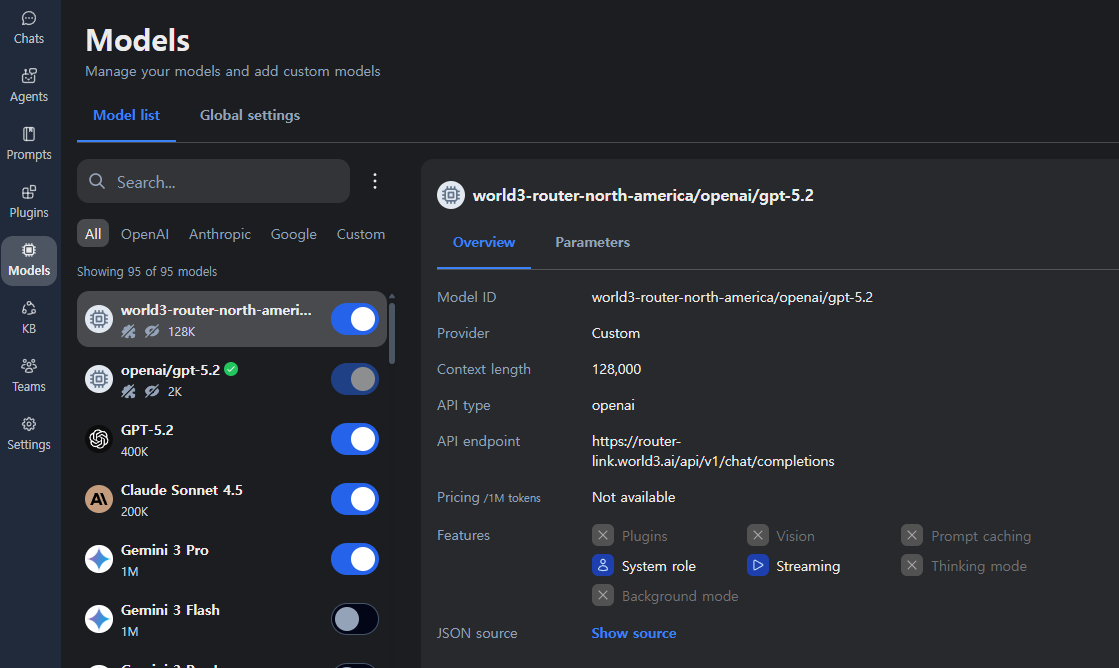
1. Click the **Models** icon in the left sidebar, then select **"Add custom model"**.
For this tutorial, we will configure **OpenAI's GPT-5.2** model via RouterLink.
***
### Step 3: Retrieve Model Configuration from RouterLink
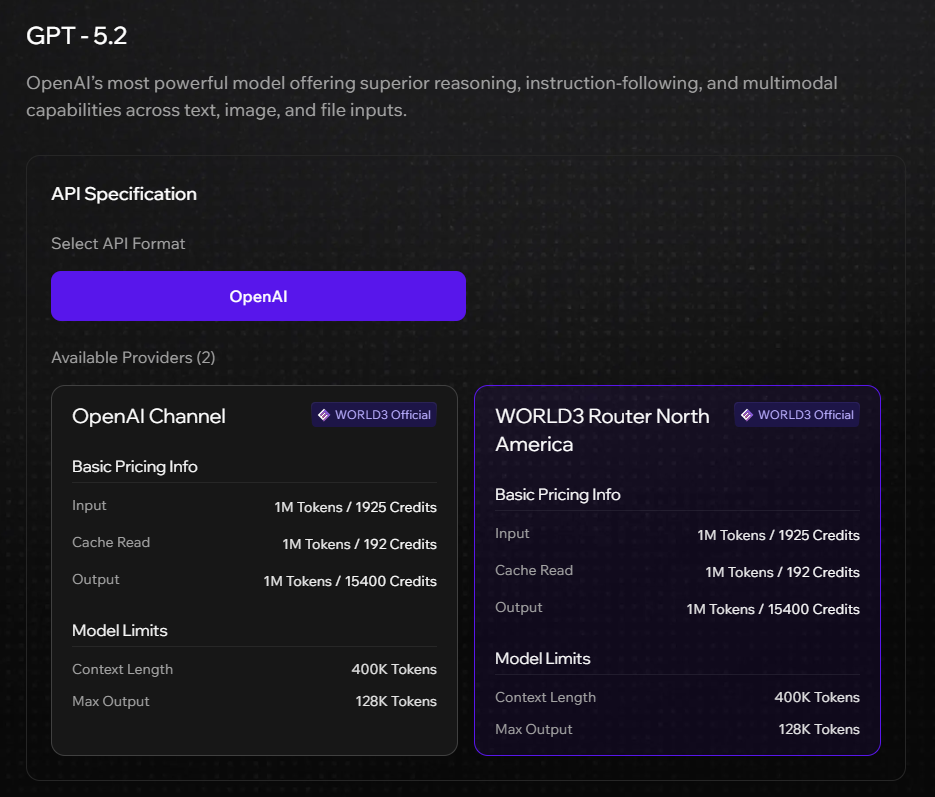
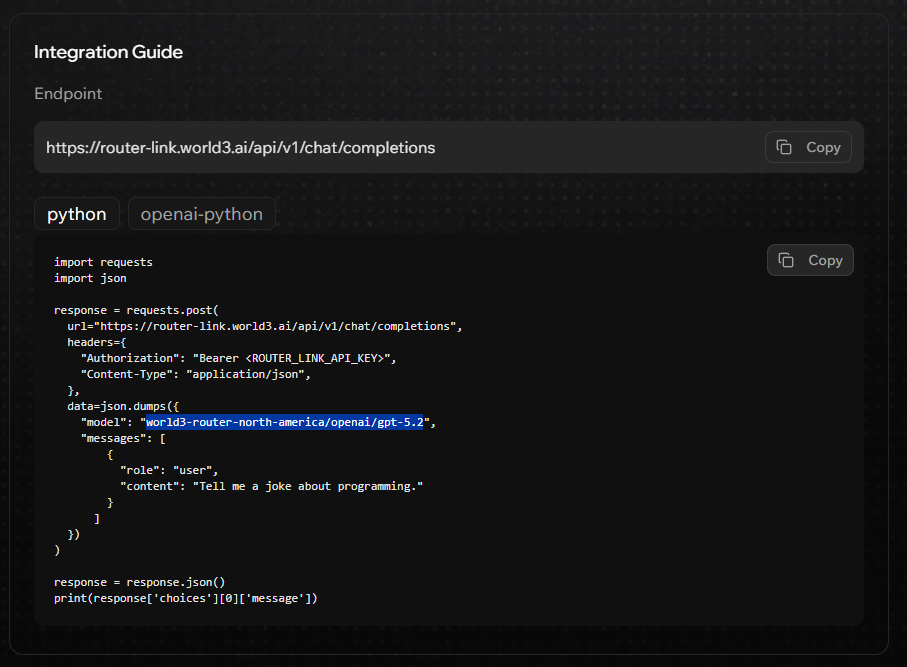
1. Visit the RouterLink model page at [OpenAI's GPT 5.2 model](https://world3.ai/routerlink/GPT%20-%205.2) to access the integration details.
2. In the **Integration Guide** section, locate the source code example and copy the **model** identifier.
***
### Step 4: Configure Model Parameters
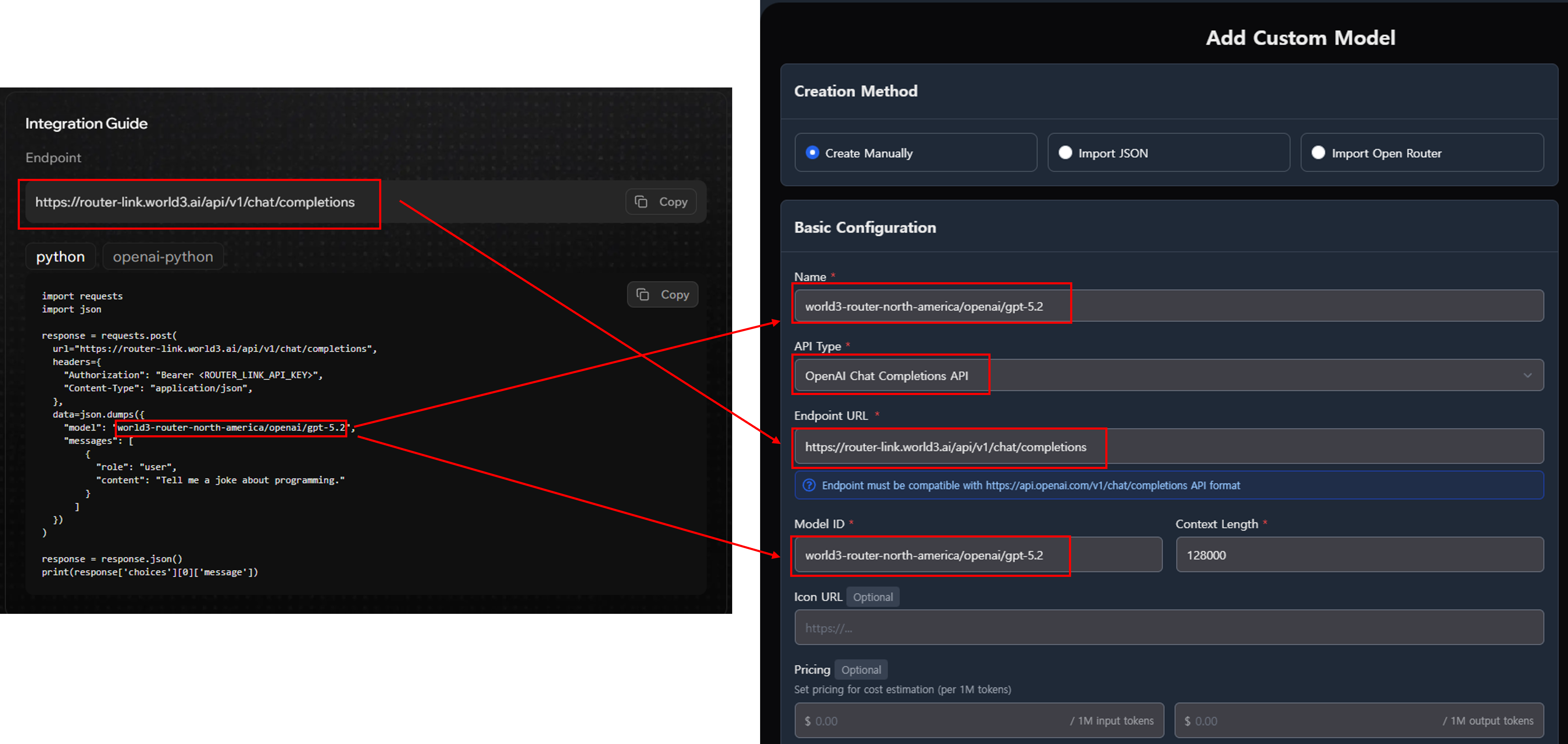
Enter the following configuration values in the TypingMind custom model form:
#### API Configuration Parameters
| Parameter | Value |
| ---------------- | ------------------------------------------------------- |
| **Model ID** | `world3-router-north-america/openai/gpt-5.2` |
| **API Endpoint** | `https://router-link.world3.ai/api/v1/chat/completions` |
#### Custom Headers Configuration
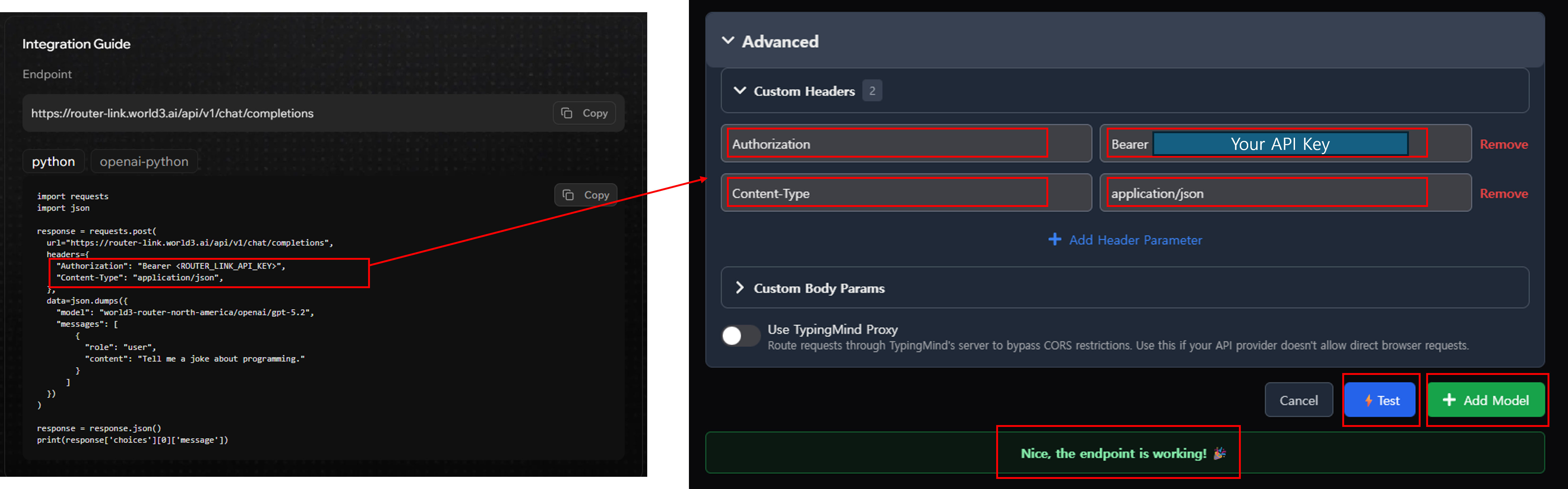
Expand the **Advanced** section to configure **Custom Headers**:
| Key | Value |
| ----------------- | ----------------------- |
| **Authorization** | `Bearer ` |
| **Content-Type** | `application/json` |
{% hint style="info" %}
For the Authorization header, replace `` with your actual RouterLink API key. Ensure there is exactly **one space** between `Bearer` and your API key. **Example:** If your API key is `sk-1234abcd`, enter `Bearer sk-1234abcd`
{% endhint %}
If you are using the free daily WORLD3 credits, please set the max tokens to ensure the service works properly (for example, set it to 4096).
#### Validate Configuration
1. Click the **"Test"** button to verify the connection is working correctly.
2. Upon successful validation, the **"Add Model"** button will become active.
3. After adding the model, set `world3-router-north-america/openai/gpt-5.2` as your default model for convenience.
***
### Step 5: Initiate a Conversation
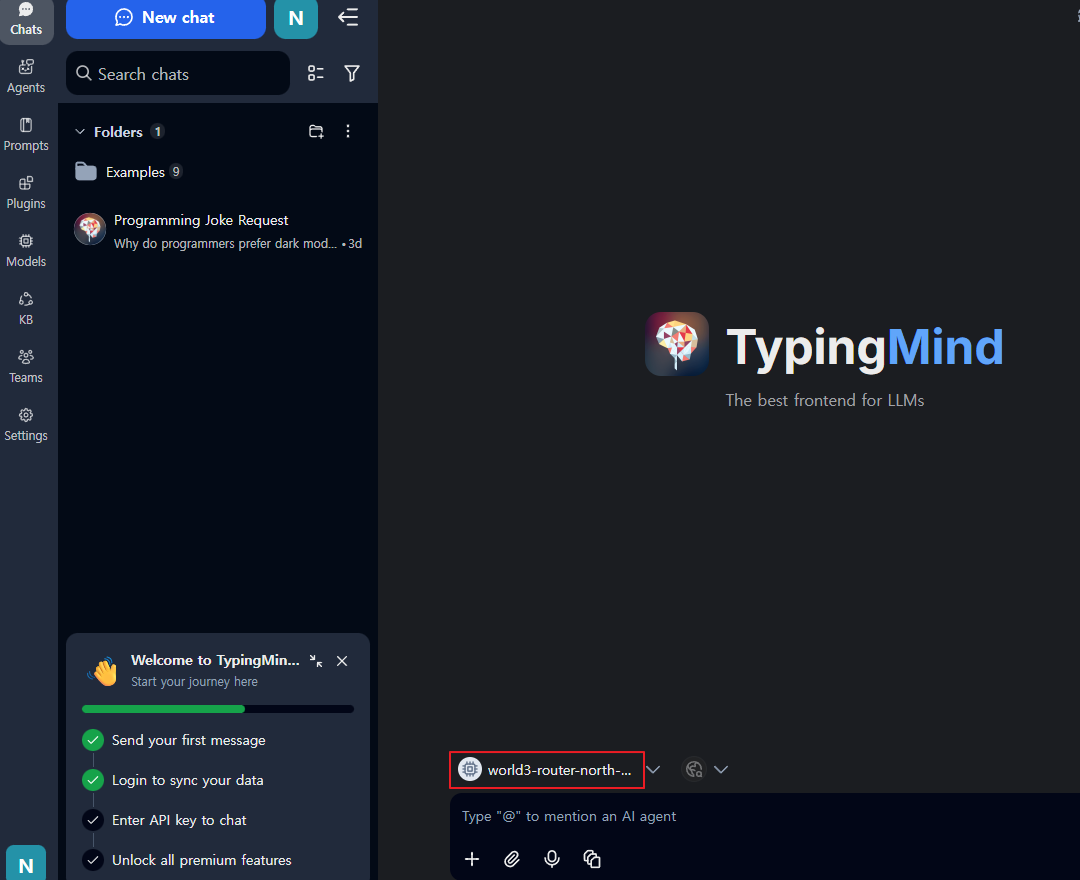
1. Click **"Chats"** in the top-left navigation area to access the conversation interface.
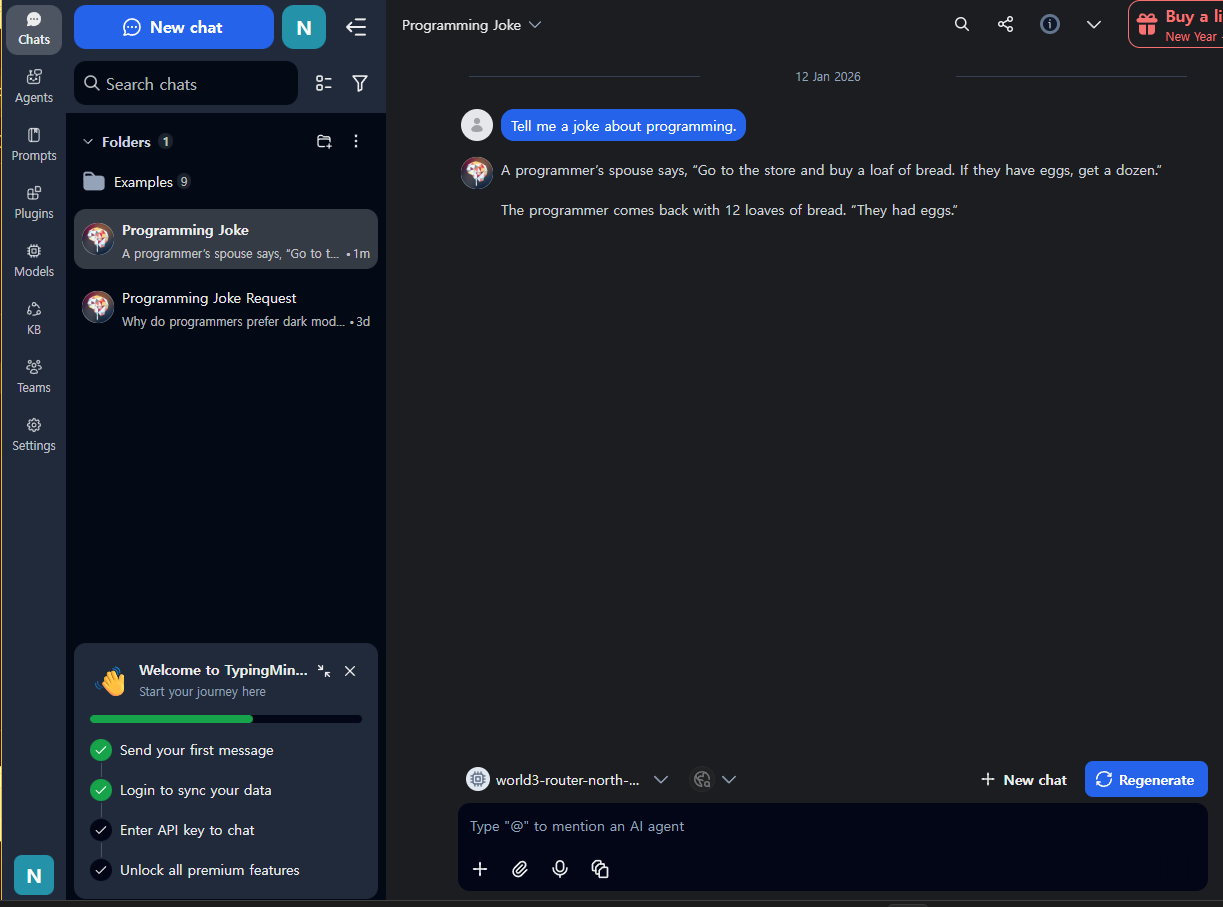
2. Verify that the newly added model **`world3-router-north-america/openai/gpt-5.2`** is selected in the model dropdown at the bottom of the interface.
3. Enter your desired prompt to confirm the integration is functioning correctly.
***
## Summary
You have successfully integrated RouterLink with TypingMind. You can now:
* Send prompts to various AI models through RouterLink's decentralized routing network
* Switch between different models available on the RouterLink platform
* Leverage TypingMind's interface features while utilizing RouterLink's infrastructure
For advanced configuration options, model availability, and API documentation, visit the [RouterLink Documentation](https://world3.ai/new-agent/router-link).
***
## Troubleshooting
| Issue | Solution |
| ------------------------- | ------------------------------------------------------------------------------------- |
| **Authentication failed** | Verify your API key is correctly formatted with `Bearer` prefix (including the space) |
| **Model not responding** | Confirm the model ID matches the exact format from the RouterLink documentation |
| **Connection timeout** | Check your network connectivity and ensure the API endpoint URL is correct |
| **Test button fails** | Verify all custom headers are properly configured (Authorization and Content-Type) |
For additional support, please open a ticket on [Discord](https://discord.gg/world3).
## Links
* Website: [https://routerlink.world3.ai](https://routerlink.world3.ai/)
* Litepaper:
* Genesis Program (Alpha Phase):
* Twitter: [@world3\_ai](https://twitter.com/world3_ai)
* Discord: [discord.gg/world3](https://discord.gg/world3)